
Technology
Our Technology section delivers concise, investigative reporting on the hardware and software innovations driving the digital era—from flagship device launches and major platform rollouts to antitrust and patent disputes shaping market dynamics. We also cover frontier aerospace and space-exploration developments, including NASA missions, deep-space telescope discoveries, and planetary science breakthroughs. Stay informed on the strategic moves, regulatory shifts, and breakthrough technologies defining tomorrow’s landscape.

OnePlus to launch the Snapdragon 8 Gen 5–powered 15R on December 17, 2025
OnePlus is preparing to release more new products before the year's end. The OnePlus 15R, OnePlus Pad Go 2, and...
Read moreDetails
Ooredoo teams up with GSMA to expand digital-skills training across 5G, IoT and cybersecurity
It's no secret that the technology sector is constantly changing, and new concepts for technological innovation are emerging in various...
Read moreDetails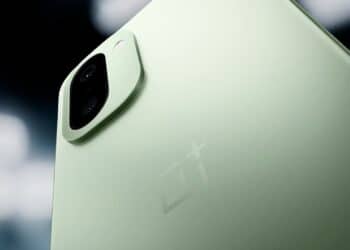
OnePlus confirms December 17, 2025 release date for its new 15R smartphone
OnePlus has recently confirmed the launch date for the OnePlus 15R smartphone to be December 17, 2025. Due to the...
Read moreDetails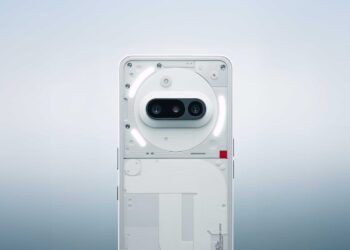
Nothing to debut the Phone (3a) Community Edition, a new budget-to-midrange Android device, in early December
Following their tradition of collaborative releases, Nothing is launching their new Phone (3a CE), created in partnership with Nothing’s fans,...
Read moreDetails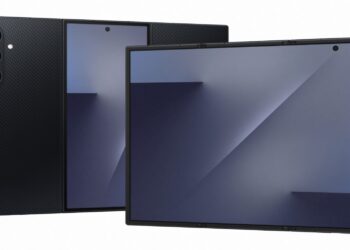
Samsung releases its first tri-fold smartphone, the Galaxy Z TriFold
Samsung has officially shown the Galaxy Z TriFold for the first time. It is a smartphone unlike anything else. It...
Read moreDetails
OnePlus to unveil the 15R, Pad Go 2 and Watch Lite on December 17, 2025
Tech fans will be happy to celebrate this holiday season as OnePlus has announced the OnePlus 15R, OnePlus Pad Go...
Read moreDetails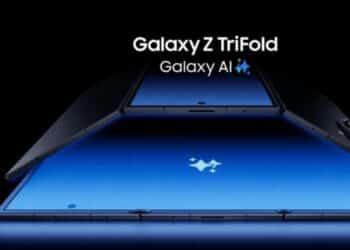
Samsung’s Galaxy Z TriFold set to become the first tri-fold smartphone when sales begin on December 12, 2025
Samsung is the first in the industry to create the world's first tri-fold smartphone, the Samsung Galaxy Z TriFold, which...
Read moreDetails
Alibaba introduces Quark AI smart glasses as everyday wearable assistant
Alibaba has decided to enter the smart wearables market and has just unveiled its new product, the Quark AI glasses....
Read moreDetails
New Zoho report shows AI adoption surpassing 90% among Indian enterprises
Some Indian companies have adopted artificial intelligence technology, and this is no longer a distant trend; it has become an...
Read moreDetails
Mumbai’s data-center boom increases reliance on coal power, prompting environmental backlash
Mumbai has experienced rapid growth in its data centers, which are emerging as giant systems responsible for powering the digital...
Read moreDetails
Nokia outlines sweeping overhaul to reposition its networks for an AI-driven era
Nokia once again shown us how it has redefined its way of doing business by using technology, innovation, and networks...
Read moreDetails
Amazon and Google launch joint multicloud networking platform to improve speed and reliability of cloud connections
Multicloud Networking has never been as present in the daily lives of companies as it is today, and at the...
Read moreDetails
Connecticut allocates $121 million to accelerate development of statewide quantum technologies
The State of Connecticut is investing $121 million to pioneer quantum technology efforts. Governor Ned Lamont remarked that the investment...
Read moreDetails
Fujitsu unveils new multi-agent AI system designed to overhaul global supply-chain operations
Fujitsu has just released a new technology: based on multiple AI agents capable of collaborating securely and quickly. This represents...
Read moreDetails
Global lenders weigh support for a $38 billion data-center buildout powering OpenAI’s next infrastructure phase
Artificial intelligence is increasingly gaining ground in large-scale disputes and investments. Global banks are discussing lending US$38 billion to finance...
Read moreDetails
UK unveils £137 million ‘AI for Science’ initiative to boost domestic AI-hardware and research startups
The United Kingdom has just taken an important step in the global race for artificial intelligence, with a new strategy...
Read moreDetails
Amazon announces $50 billion supercomputing and AI-cloud platform tailored for government agencies
Amazon has announced a multi-billion-dollar investment related to the use of technology for government purposes. The estimated investment is up...
Read moreDetails
Nokia outlines sweeping strategy shift as it pivots toward AI-driven network architectures
Nokia has announced a shift in its global strategy, marking a new beginning for the company in the race for...
Read moreDetails
Nothing to release its first entry-level smartphone, the Phone (3a) Lite, later this month
Nothing has just taken an important step with the launch of its first entry-level smartphone, part of its main brand,...
Read moreDetails
Amazon commits $15 billion to expand AI-driven data center capacity across Indiana
Amazon has just announced a billion-dollar investment to expand its data center located in Indiana. This investment is considered one...
Read moreDetails
Connecticut directs $121 million toward expanding its statewide quantum tech ecosystem
The Connecticut state government is investing heavily in the technological future and has announced a significant investment of US$121 million...
Read moreDetails
NVIDIA chief pledges full support for accelerating AI growth, rejects concerns of a market bubble
NVIDIA's leadership made public statements aimed at reinforcing the brand's commitment to investing in the advancement of artificial intelligence, while...
Read moreDetails
Mibro introduces Kids Watch Phone S1 aimed at safer, smarter communication for children
The company Mibro has just launched its new product, the Kids Watch Phone S1. At a time when many families...
Read moreDetails
Lumia 2 debuts ultra-mini smart earrings capable of tracking real-time cranial blood flow
The company Lumia is launching a revolutionary product in the technology market: a new smart earring that promises to change...
Read moreDetails
Even Realities debuts Even G2 smart glasses featuring AI tools without onboard cameras
Even Realities has just launched its newest line of smart glasses, called the Even G2, which comes to market as...
Read moreDetails
Europe advances satellite communications with rollout of next-generation phased-array antennas
A silent revolution is underway in European space communications. Europe is deploying phased-array antennas, aiming to transform how satellites communicate...
Read moreDetails
Startups race to roll out AI-driven wearables as voice-based interfaces rapidly advance
The race to develop new technologies that appeal to the public has generated a high level of competitiveness among startups,...
Read moreDetails
Apple introduces iPhone Pocket like “a beautiful way to wear and carry iPhone”
Apple has just made an announcement that surprised the public. The brand unveiled the iPhone Pocket, an accessory that blends...
Read moreDetails
OnePlus confirms global launch date for 15 series, unveiling new colors and upgraded cameras
OnePlus has officially launched its new series, the OnePlus 15, globally, marking the beginning of a new phase for its...
Read moreDetails
Honor debuts AI-powered Magic8 flagship lineup in China
HONOR officially unveiled its new flagship smartphone line, the Magic8 series, at an event held in China. The devices are...
Read moreDetails
Analog Devices unveils CodeFusion Studio 2.0 to speed up embedded AI innovation
Analog Devices (ADI) has just announced the release of CodeFusion Studio 2.0, its new platform designed to accelerate and simplify...
Read moreDetails
OpenAI inks $38 billion cloud partnership with Amazon Web Services to expand AI infrastructure
OpenAI announced a $38 billion deal with Amazon Web Services (AWS), marking a major undertaking for both companies, with the...
Read moreDetails
Brazil showcases national quantum strategy as it builds momentum in emerging tech sector
Brazil is launching a new national strategy to occupy a new space in the global technological innovation landscape. The country...
Read moreDetails
Sateliot launches Europe’s first 5G satellite development hub in Barcelona
Barcelona has just launched a pioneering initiative in continental Europe focused on communication through space innovation. Sateliot, a Catalan telecommunications...
Read moreDetails
NVIDIA CEO reports surging demand for Blackwell chips as wafer orders hit new highs
The chip market was buzzing this week, and Nvidia was the central focus. During an event in Taiwan, Jensen Huang,...
Read moreDetails
Vodafone and AST SpaceMobile partner to develop Europe’s first satellite-to-phone network
Vodafone and AST SpaceMobile have just closed a partnership and together plan to launch the first European direct-to-smartphone satellite network....
Read moreDetails
ESA launches Sentinel-1D radar satellite, finalizing first-generation Earth observation network
The European Space Agency (ESA) has launched Sentinel-1D, the latest satellite in the first generation of one of the world's...
Read moreDetails
Nvidia joins India’s Deep Tech Alliance as new members commit $850 million in funding
A new partnership is emerging in the job market. Nvidia has just joined forces with the India Deep Tech Alliance,...
Read moreDetails
Samsung to roll out Galaxy XR headset in U.S. stores starting October 21
With its new release, Samsung has just redefined what we understand by mixed reality. Since October 21st, the highly anticipated...
Read moreDetails
iQOO teases India launch of 15 series with Snapdragon 8 Elite Gen 5 and massive 7,000 mAh battery
iQOO, a subsidiary of Vivo, has just announced its latest launch in the iQOO 15 series for the Indian market,...
Read moreDetails
Cisco unveils new edge computing device designed for AI workload processing
Cisco Unified Edge is the name of Cisco's new product launch, a computing device designed to bring AI processing closer...
Read moreDetails
Nothing launches Phone 3a Lite in India following successful European debut
A British company is taking a new step in the technology market. Nothing has just expanded its smartphone line to...
Read moreDetails
Huawei launches Watch GT 6 series in Japan with discounted pre-order offers
Huawei has just announced the launch of a new line of smartwatches in Japan. The Huawei Watch GT 6 Series...
Read moreDetails
KEF unveils new high-fidelity speaker line as 2025 audio market surges
British company KEF has been a world leader in high-fidelity audio for over six decades. Now, the company is launching...
Read moreDetails
OnePlus unveils 15 flagship in China featuring Snapdragon 8 Elite Gen 5 and 7,300 mAh battery
This week, OnePlus unveiled its latest release: the OnePlus 15 smartphone, a top-of-the-line model. The launch initially took place in...
Read moreDetails
Apple upgrades Vision Pro with new M5 chip and improved design features
Apple has announced a new release: the next generation of its spatial computing device, called Apple Vision Pro. Additionally, it...
Read moreDetails
China’s YMTC considers major IPO as competition in semiconductor industry intensifies
Chinese company YMTC, one of the country's leading memory chip manufacturers, is currently preparing for a momentous occasion: an IPO,...
Read moreDetails
U.S. Department of Energy launches $1 billion supercomputing and AI collaboration with AMD
This week, the United States reached a new milestone in its technology race and is now poised to push the...
Read moreDetails
Oppo to unveil Find X9 series globally on October 28 at Barcelona event
Oppo is taking another decisive step forward in the technology sector, in a battle between the industry's biggest names. After...
Read moreDetails
Samsung launches Galaxy XR headset in direct challenge to Apple’s Vision Pro
Samsung, after months of consumer anticipation, finally unveiled the Galaxy XR, its first mixed reality headset. The launch took place...
Read moreDetails
© 2025 by Global Current News